

To update maps on your device, you must first be connectedto Wi-Fi. You can connect to:
- Your company Wi-Fi, which is configured from thesettings menu of TN360
- Your Home Wi-Fi
- Your Mobile Wi-Fi
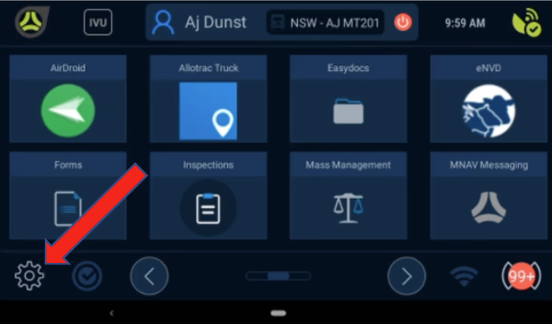
- Select the Gear button in the bottom left of the screen
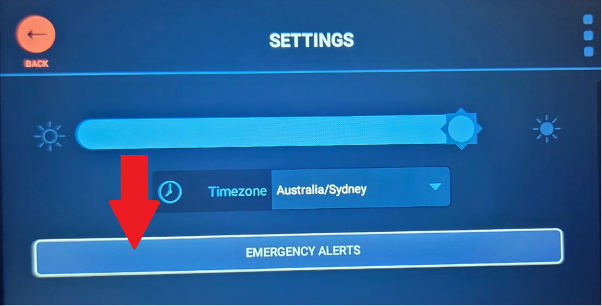
- Select the Emergency Alerts button
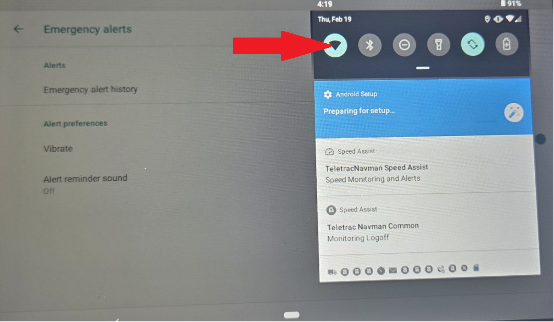
- Pull down the settings in the top right, hold down the Wi-Fi Button, select your Wi-Fi and enter your Wi-Fi password
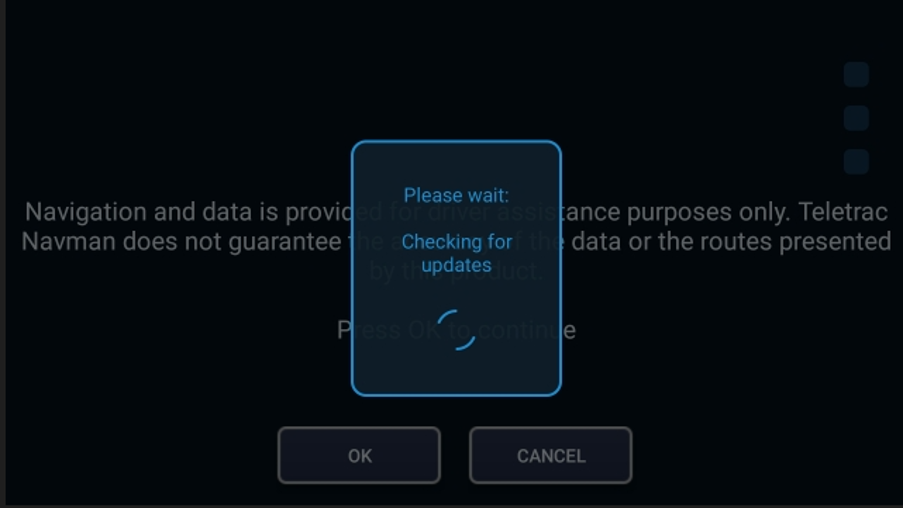
- Open SmartNav on your device. Each time SmartNav is launched, it will check for available App & Map updates
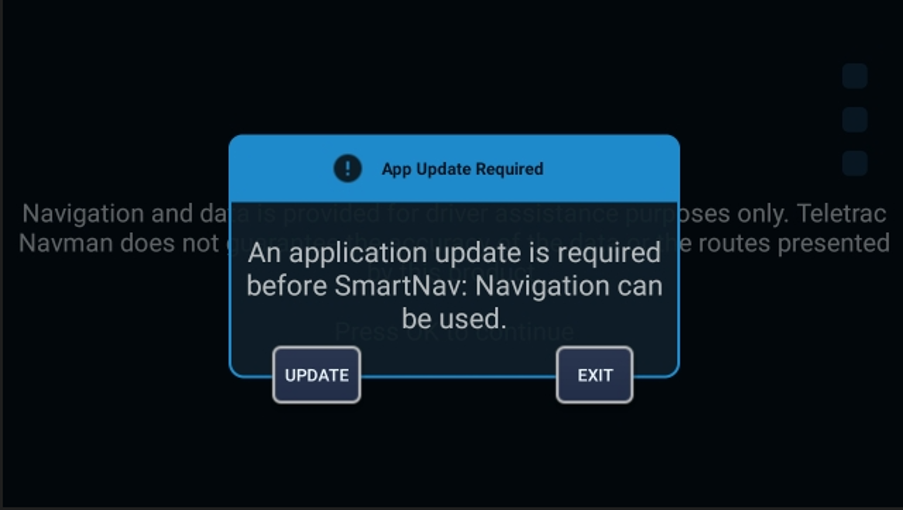
- If App Update Required select ‘Update’
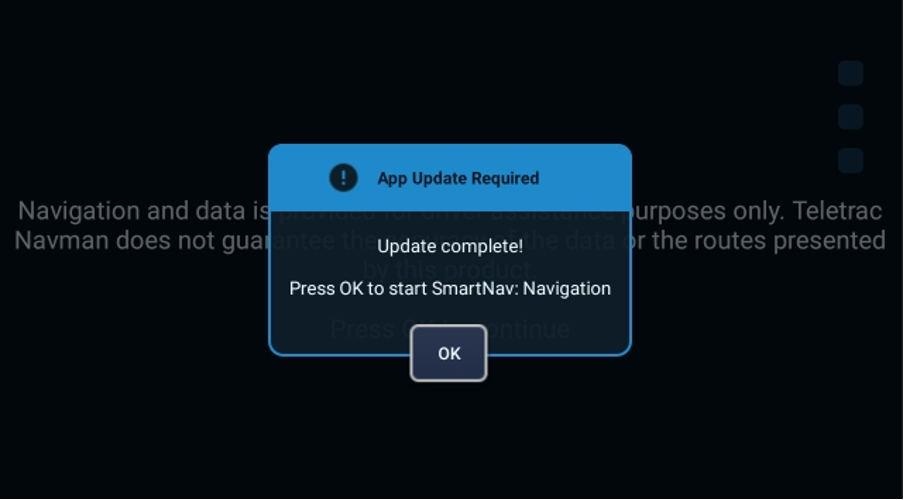
- Select ‘Ok’ once update completed
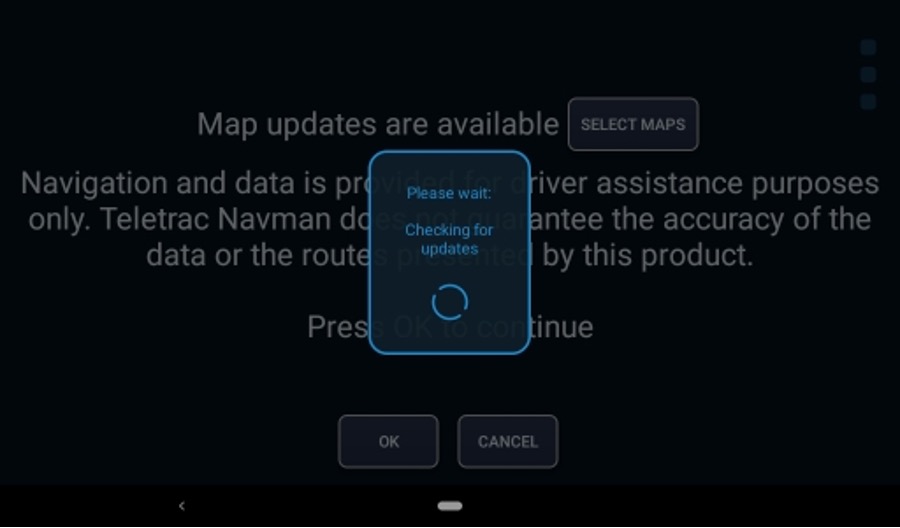
- SmartNav will check for updates
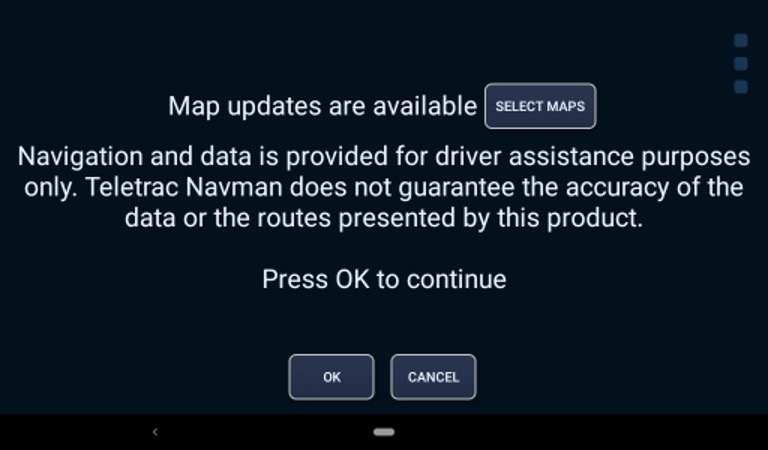
- When updated maps are available an option to ‘select maps’ will be available. Tap ‘select maps’
Get In touch with us
Raise An Enquiry With Our Team
Oops! Something went wrong while submitting the form.

