

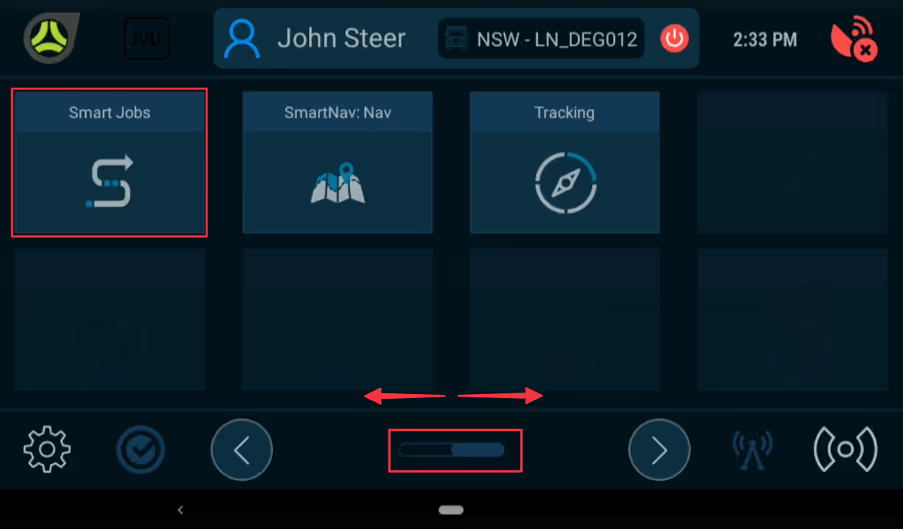
Navigate to Smart Jobs App.
Note: Applications are arranged in alphebetical order. You may need to swap across on screen to the 2nd page
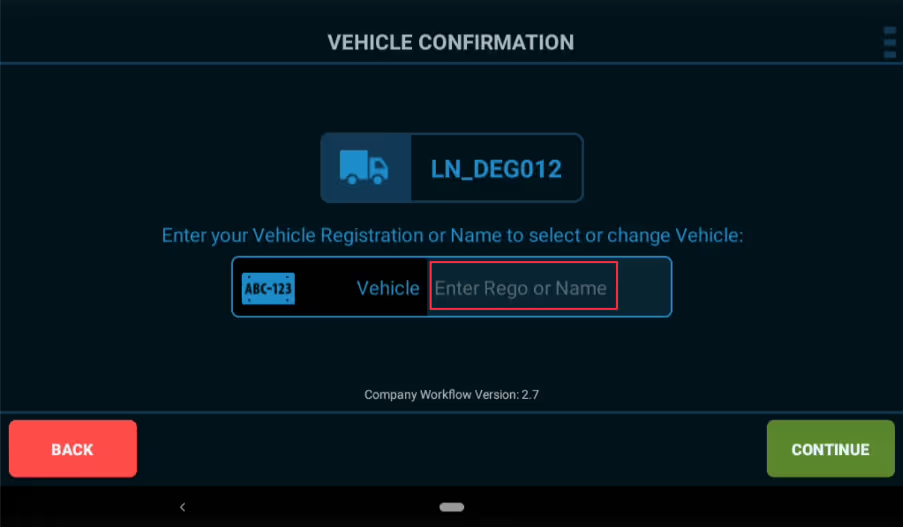
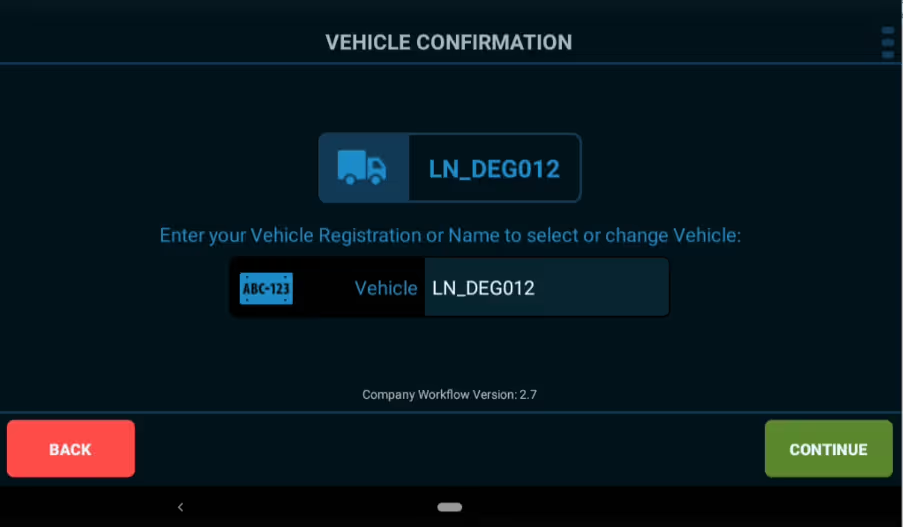
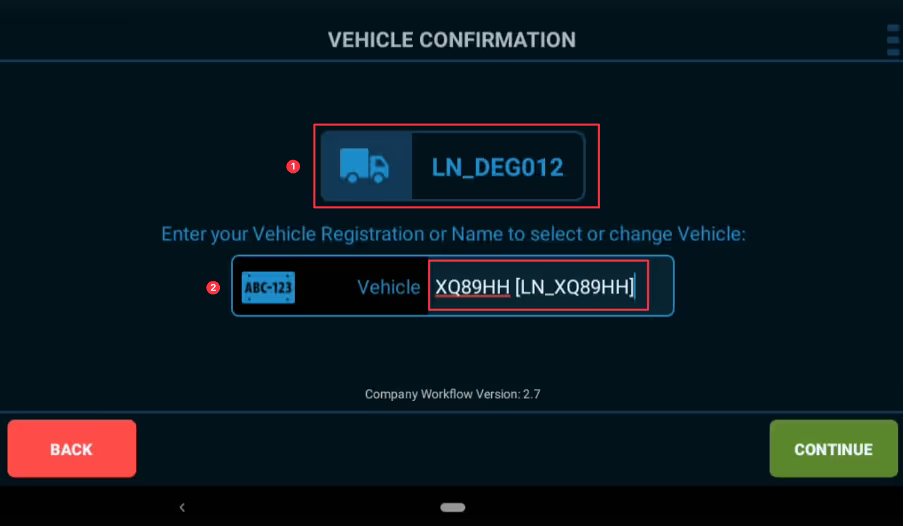
Confirm correct truck is listed. Select ‘Continue’ to view available ‘Run Sheets’
Note: You can search by either Registration # or Fleet #
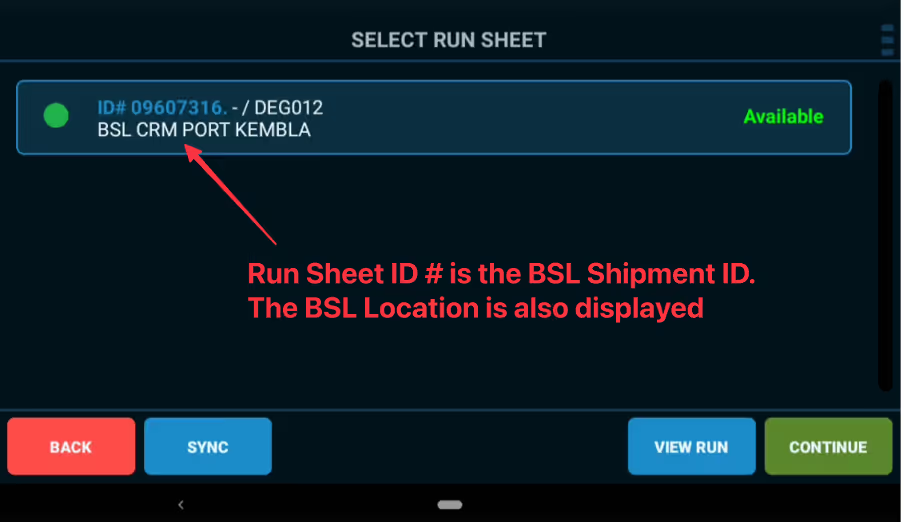
Select ‘View Run’ to see the jobs included in the Run Sheet or Select ‘Continue’ to proceed / skip this step
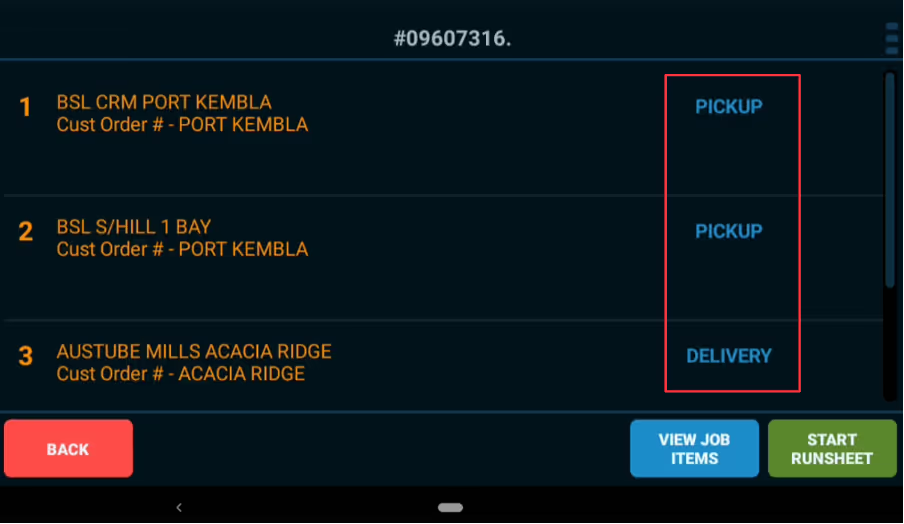
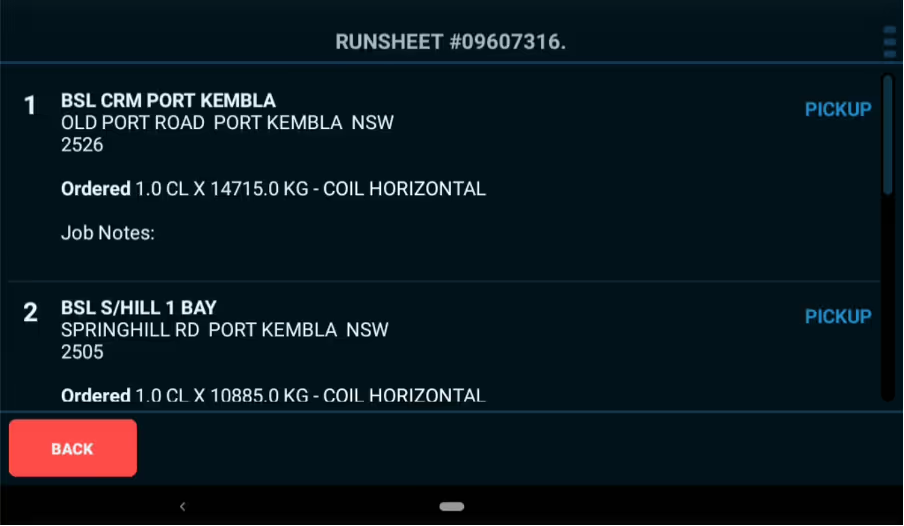
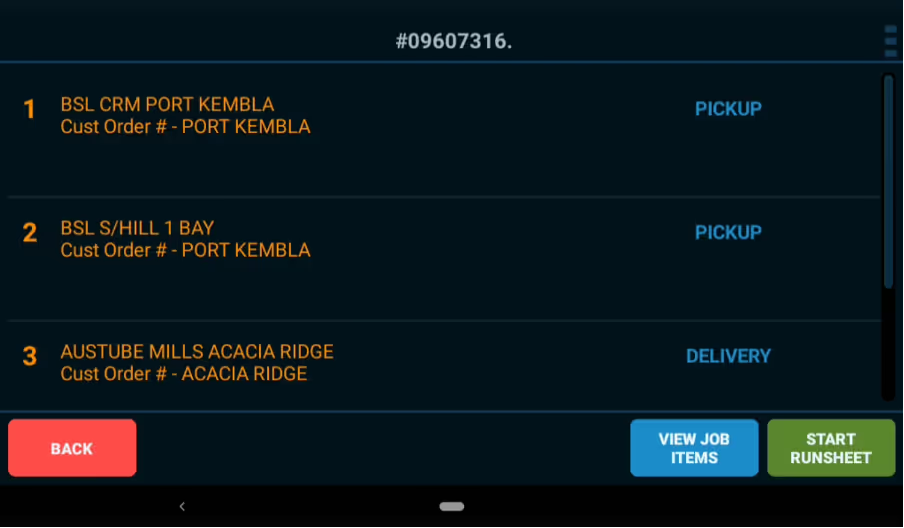
Select ‘View Job Items’ to see more details or proceed to ‘Start Run Sheet’
Note: Jobs listed in sequence & defined as ‘Pickup or Delivery’
Scroll up & down to review all Job Addresses, Ordered Products, Quantities, Weights plus any Jobs Notes listed
Select ‘Back’ to return
Select ‘Start Run Sheet’ to proceed
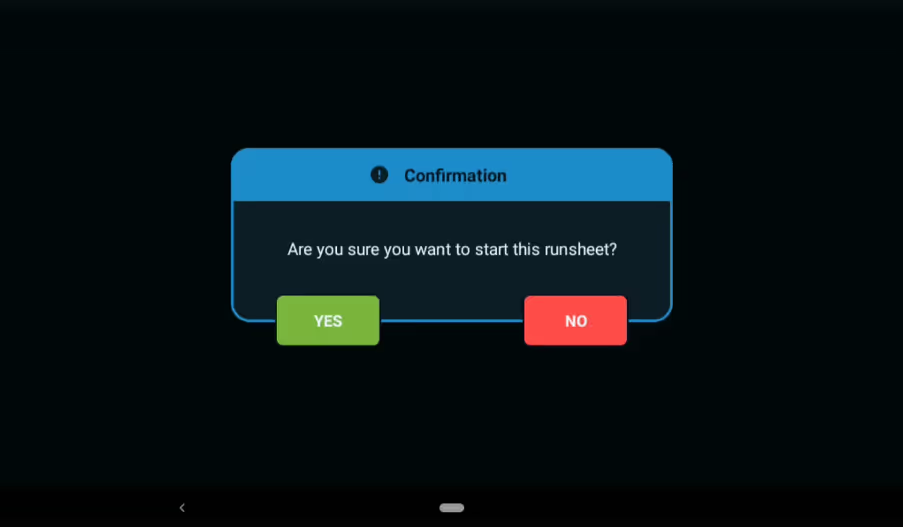
Confirm ‘Yes’ when ready to commence run sheet
Select ‘Next Job’ to proceed
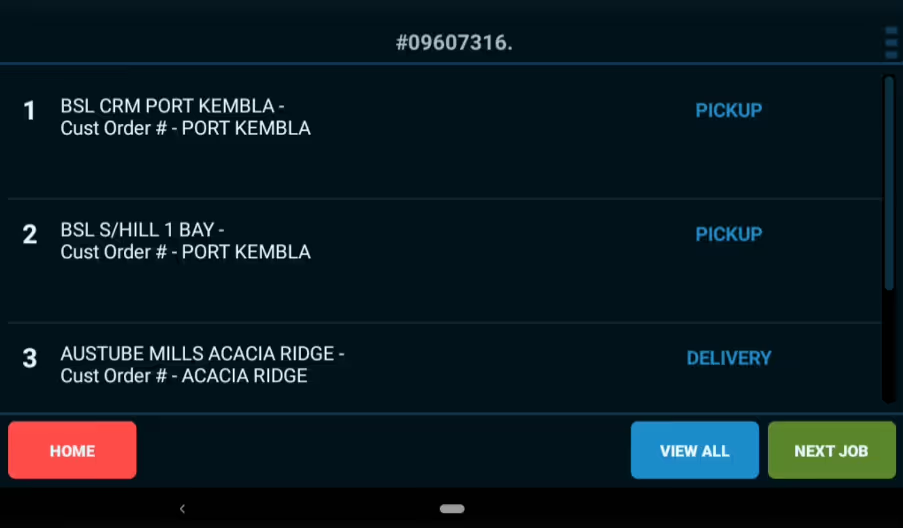
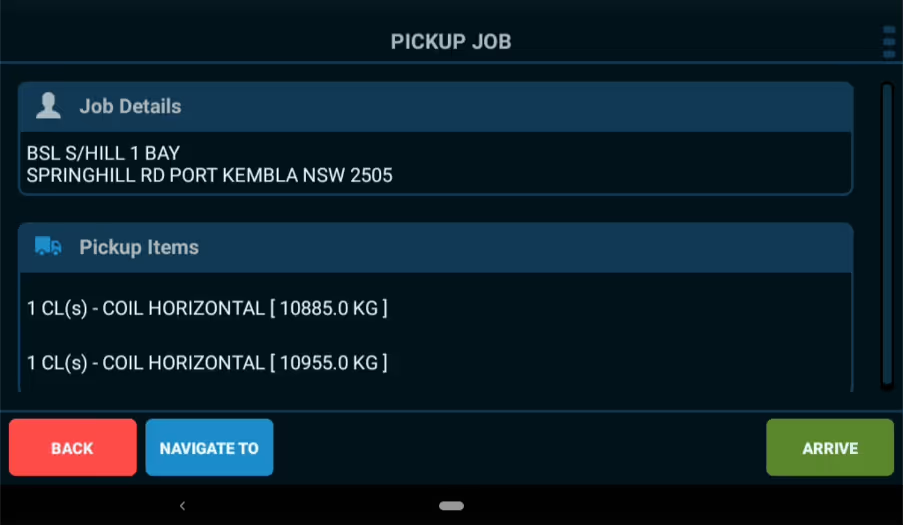
Drive to the pickup location / address listed in ‘Job Details’
Note: Navigation assistance is available if desired select ‘Navigate To’
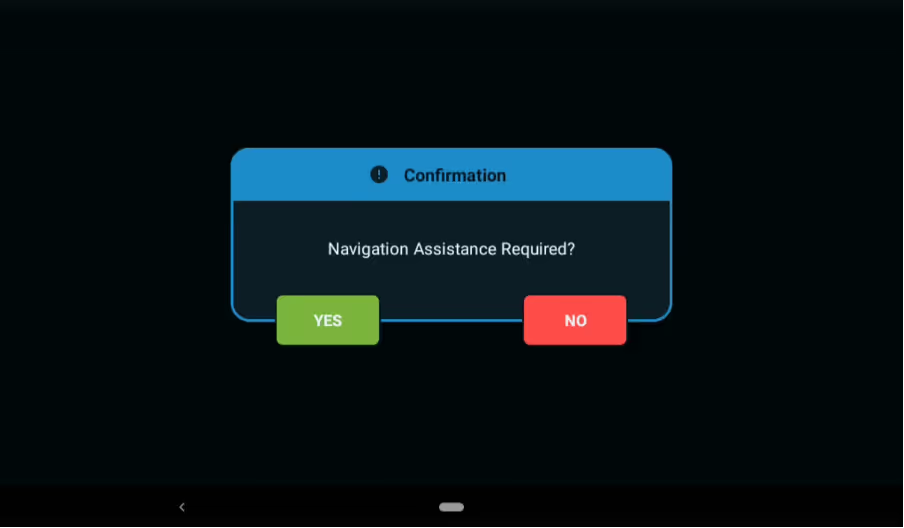
Confirm ‘Yes’ or ‘No’ to Navigation Assistance
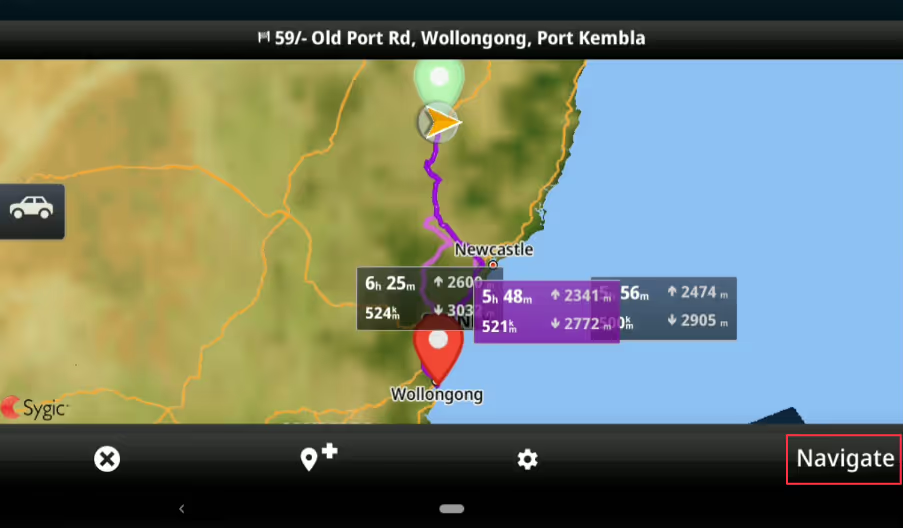
Select ‘Navigate’ for navigation assistance to commence
You are required to announce when arriving for any ‘Pickup Job’. Select ‘Arrive’ when you get to the ‘Pickup Location’ listed in Job Details. This will update the progress status of job.
Select ‘Start’ when ready to confirm loading / loaded the ‘Pickup Items’ listed

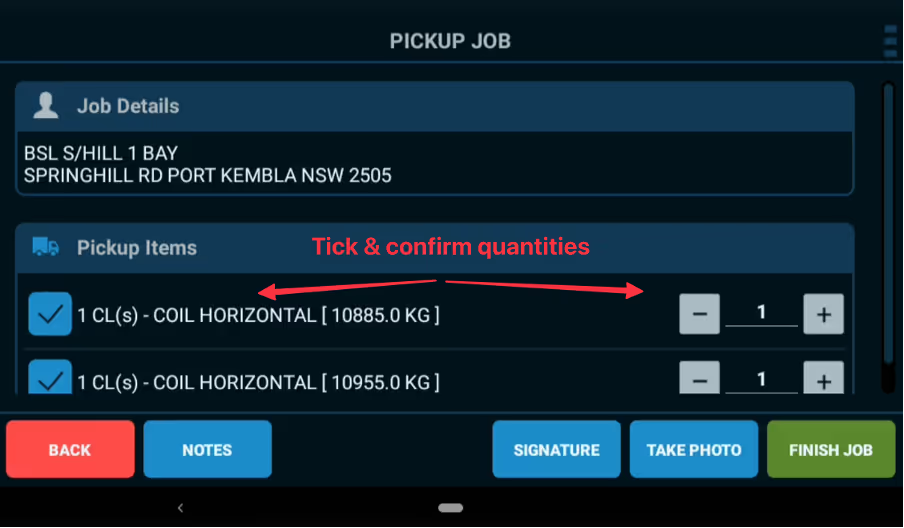
Confirm the Pickup Items, Quantities Loaded, add any Notes if required & select ‘Finish Job’
Note: For ‘Pickup Jobs’ the Signature & Photo of ‘Loaded Items’ are optional
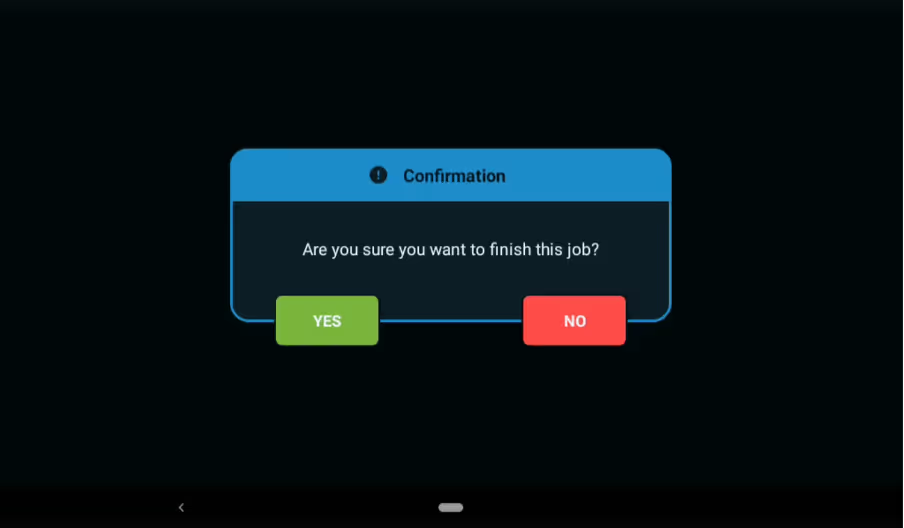
Confirm ‘Yes’ to finsh job
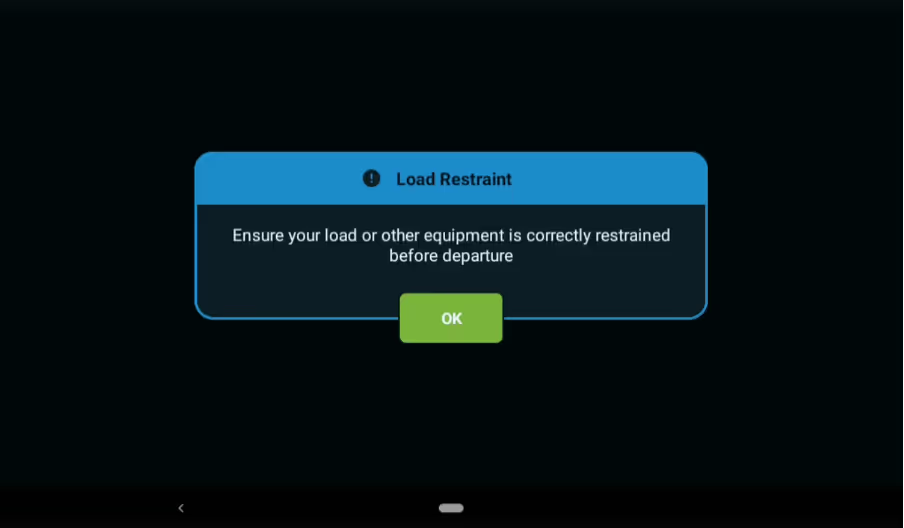
Confirm load restraints completed per DGL / BSL policies & procedures
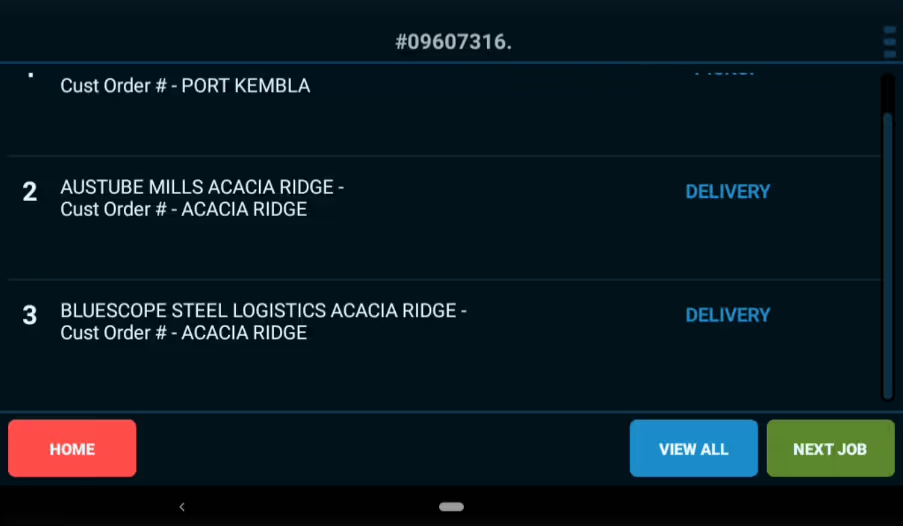
Select ‘Next Job’ to proceed to next job in sequence
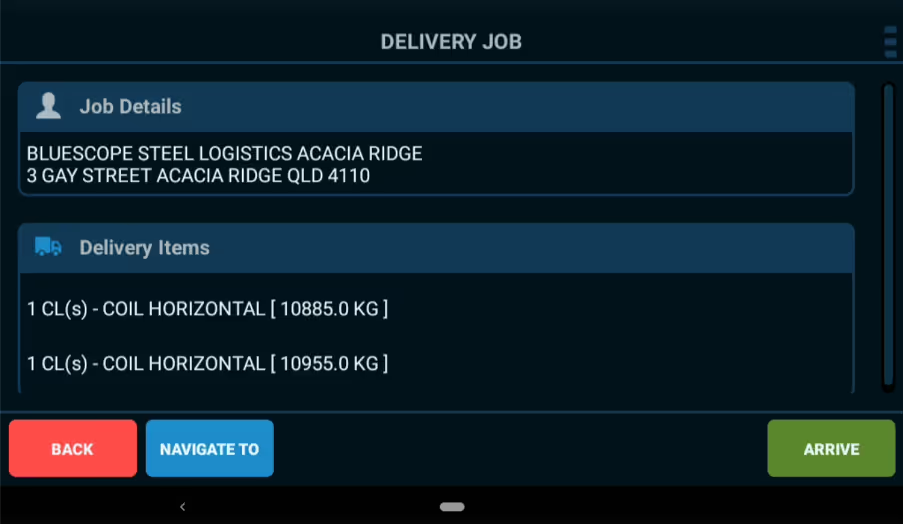
Repeat same steps / drive to location / delivery job address
When within 300m of a Delivery Address an ‘Auto Arrival Popup’ will appear & automatically update progress status
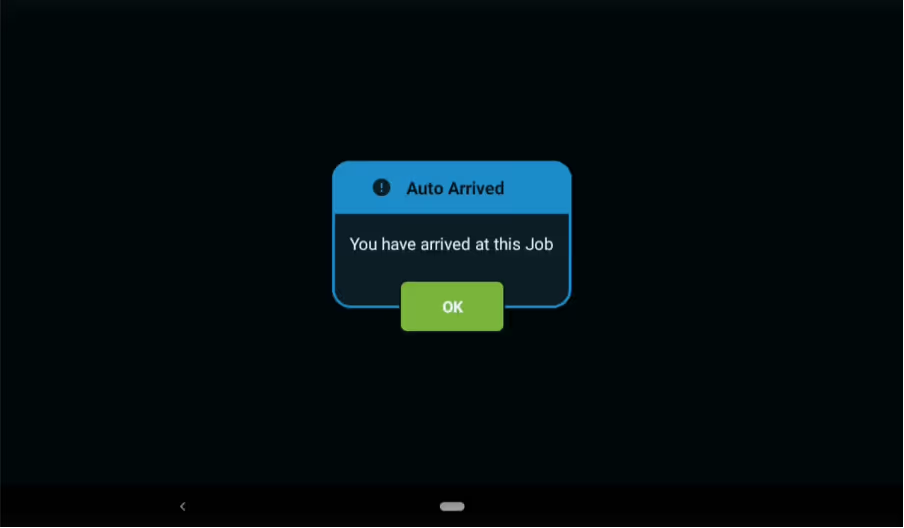
If no ‘Auto Arrival Pop-Up’ appears please select ‘Arrive’ when you get to the ‘Delivery Location’ listed in Job Details. This will up update the progress status of job,
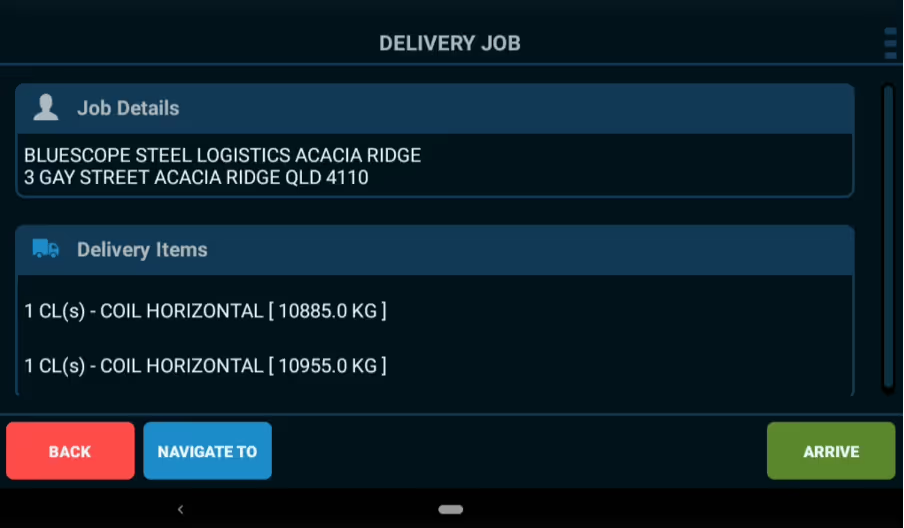
Confirm ‘Delivery Items, Quantities Un-loaded, add any Notes if required & proceed to ‘Finish Job’
Note: For ‘Delivery Jobs’ – Signature & Photo of ‘Delivered Items’ are mandatory
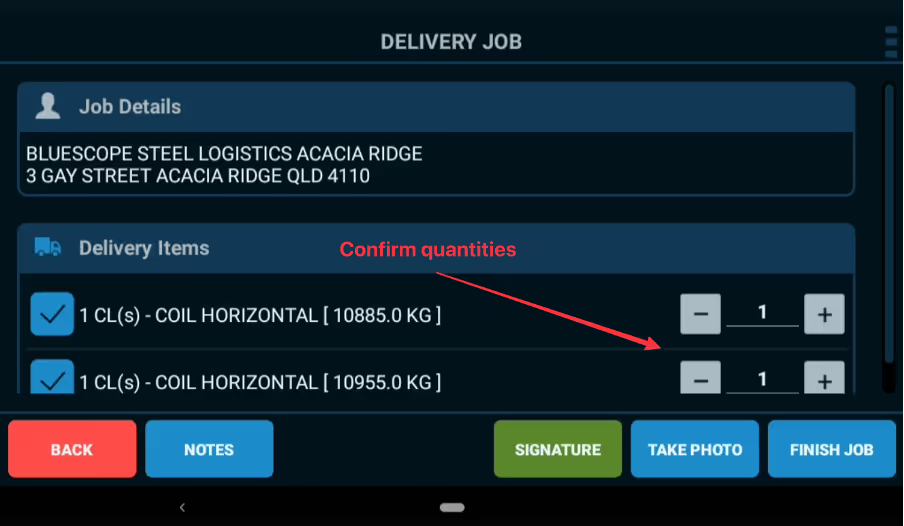
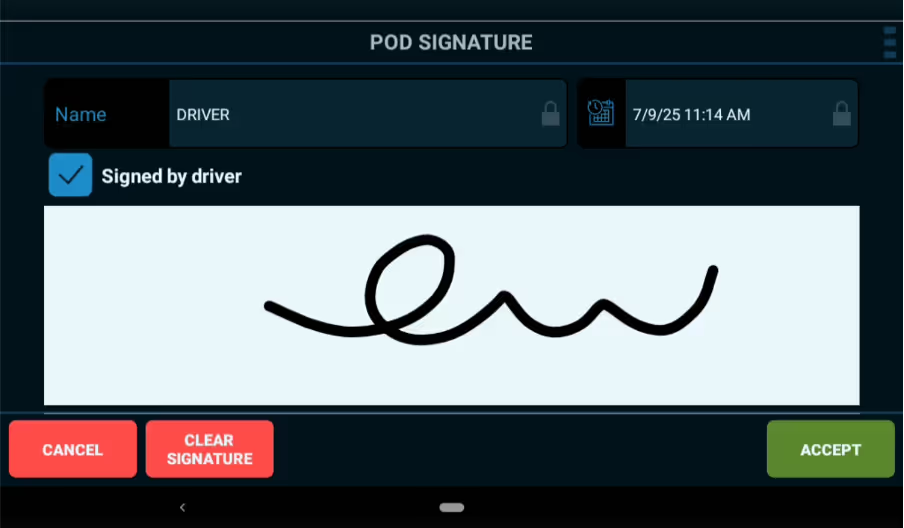
Select ‘Signature’ to add a Proof of Delivery signatory name or sign as the driver
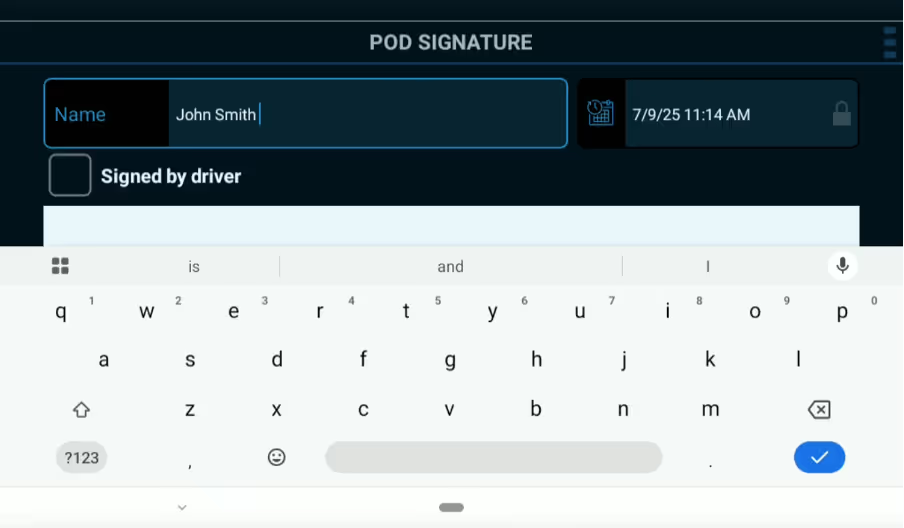
Sign on screen & ‘Accept’ to proceed
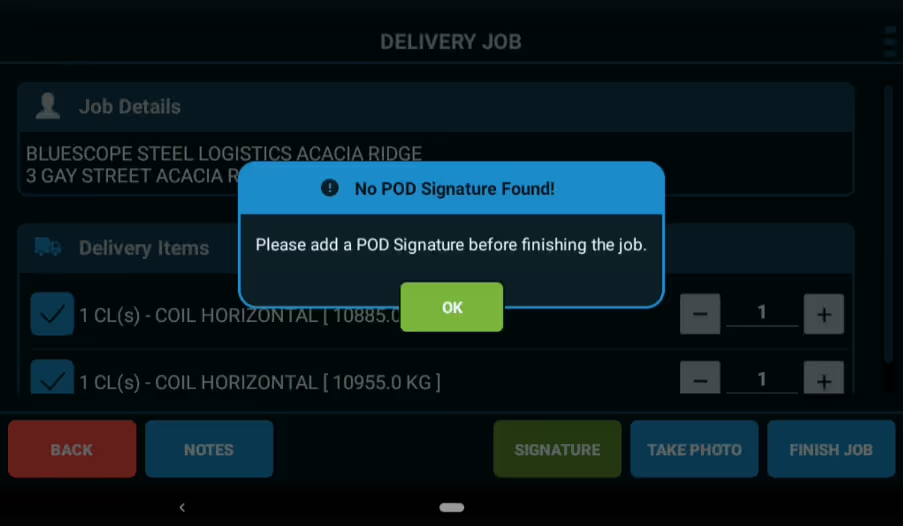
Note: If no POD Signature found an onscreen pop-up on will appear.
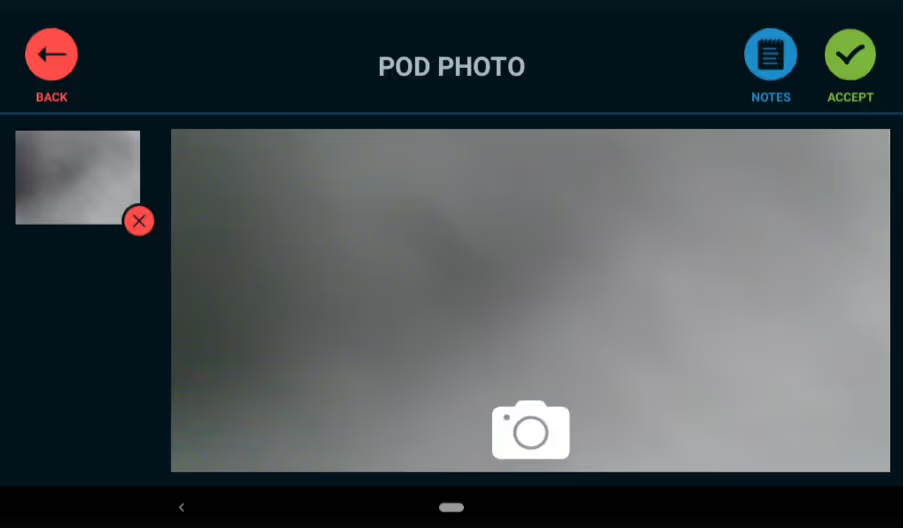
Select ‘Take Photo’ to add a Proof of Delivery Photo of the delivered items & select ‘Accept’
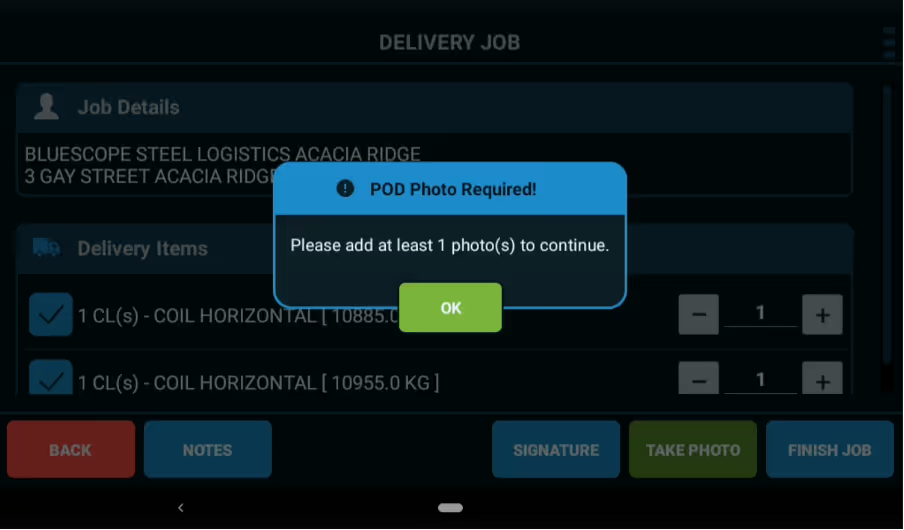
Note: If no POD Photo found an on screen pop-up will appear.
Once ALL ‘Jobs’ in a run sheet are complete select ‘Finish Runsheet’ to complete
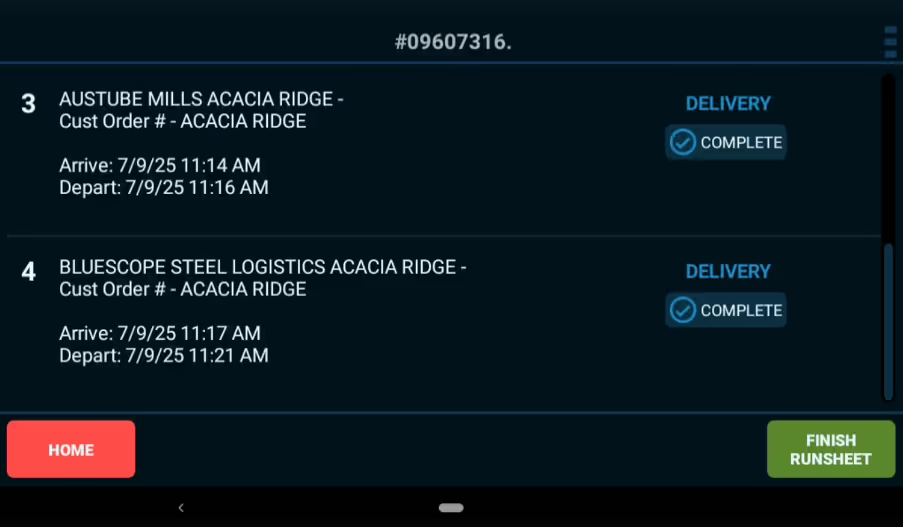
Confirm ‘Yes’ to proceed
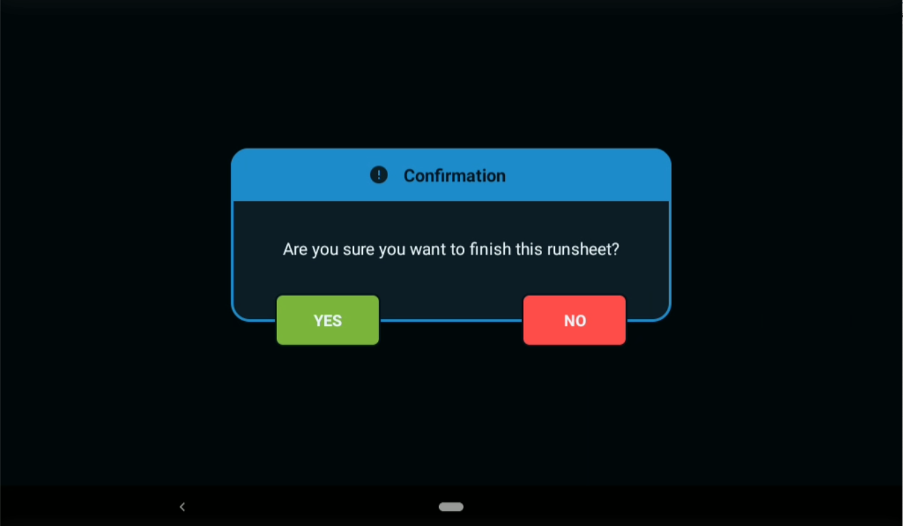
Select ‘Continue’ to receive any new run sheet(s) that have been allocated by your transport manager
FAQ’s
What happens if there are variations to the ‘Pickup or Delivery Items’
Confirm the actual Pickup or Delivery Items, Quantities Loaded, complete any proof of pickup / delivery photos & signatures then proceed as normal & ‘Finish Job’
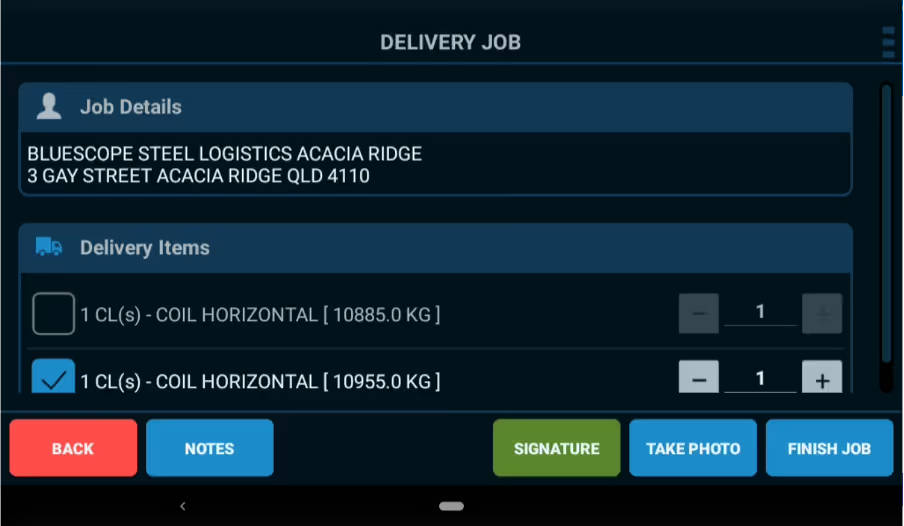
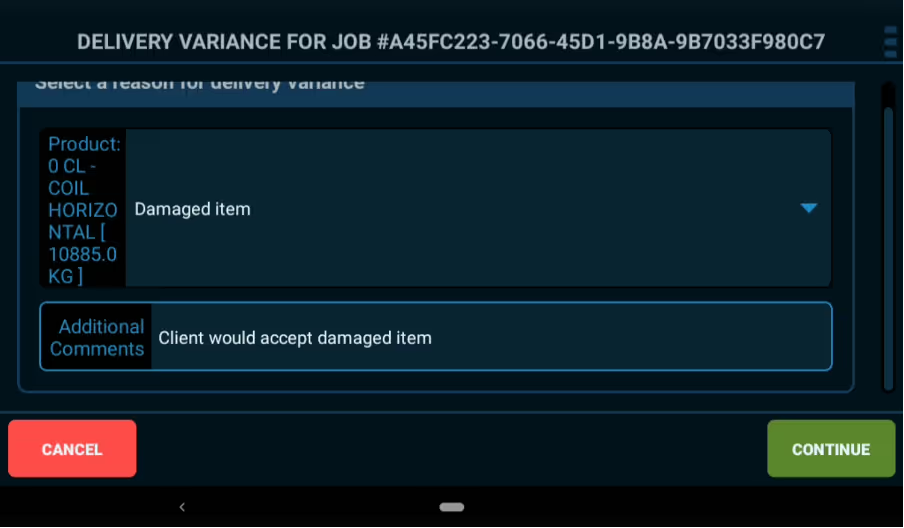
Select appropriate ‘Variation Reason’ from drop-down menu, complete additional comments
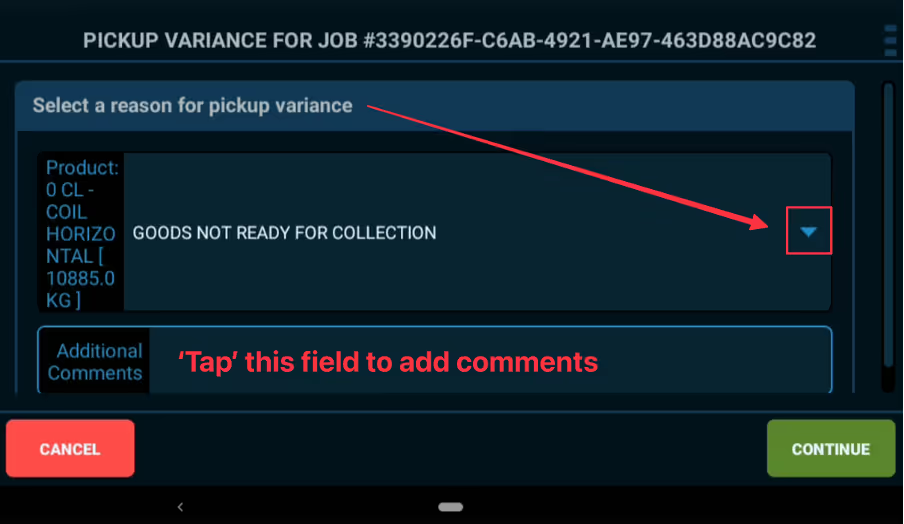
Add supporting comments to ‘Additional Comments’ field & select ‘Continue’
Can jobs be completed out of Sequence?
Yes.
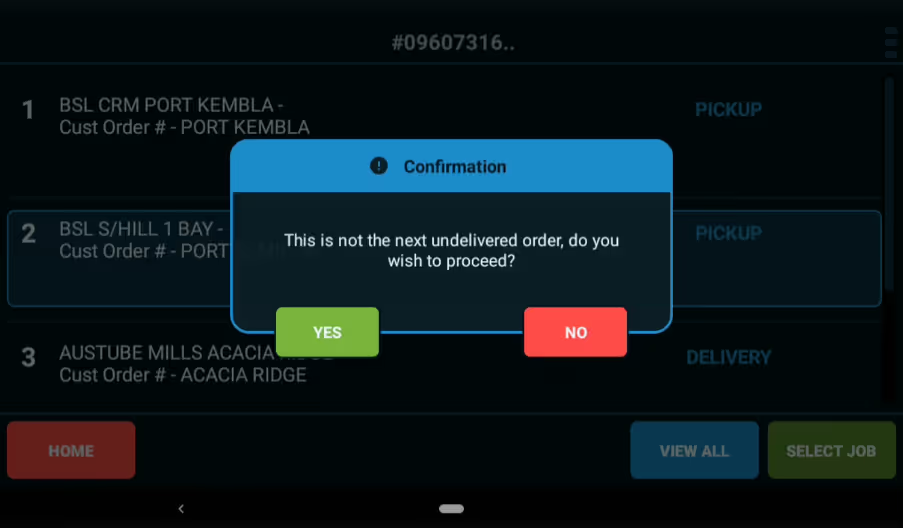
When viewing jobs ‘Tap’ the job you want to complete next / out of sequence & ‘Select Job’ then confirm ‘Yes’ that you are aware it is not the next undelivered order
Proceed to complete jobs steps as usual
The status of jobs will be updated
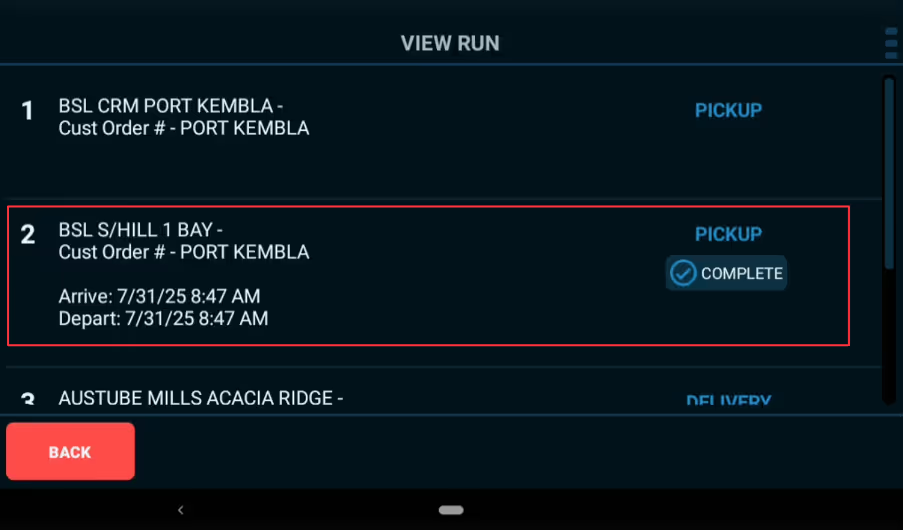
You can select another job out of sequence if needed or select ‘Next Job’ to proceed with the remaining jobs in sequence
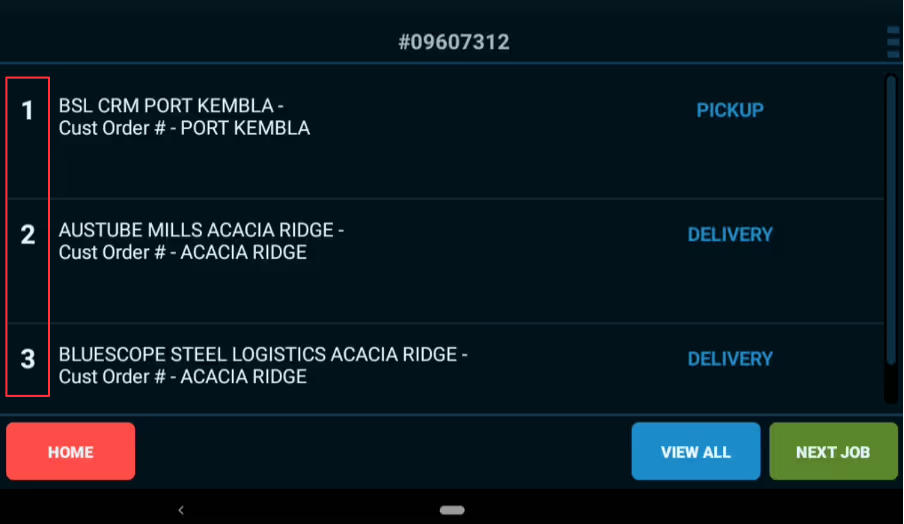
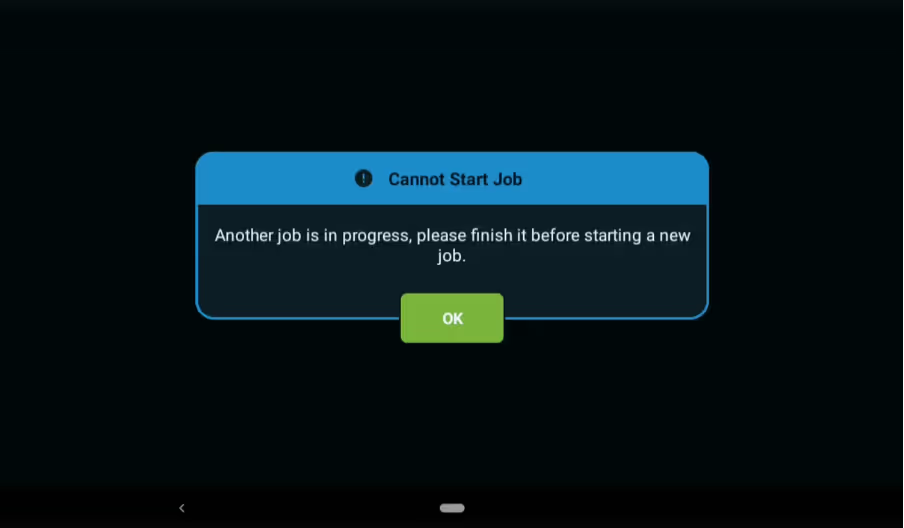
If any jobs are not complete, you will not be able to startanother job until the required steps are completed.
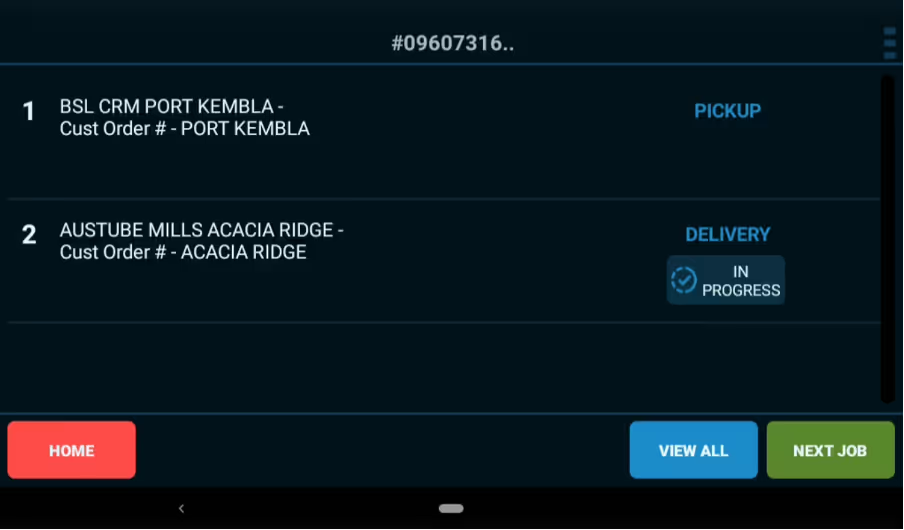
The job status will show as ‘In Progress’ if not completed.
Note: If ever in doubt where you are up to with any job just select ‘Next Job’ & you will be guided to the next steps required.
What do I do if there are no run sheets in Smart Jobs?
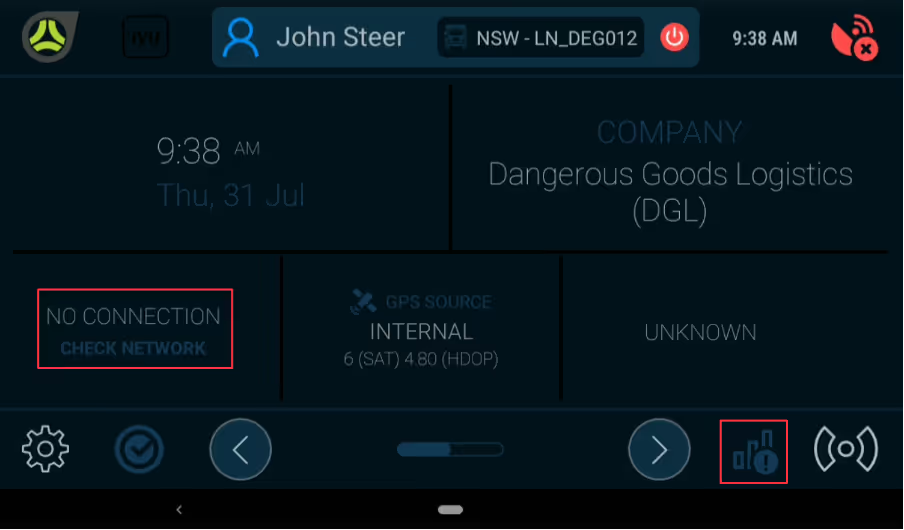
1. Check the driver terminal has cellular connection. It should be displayed per below.
Note: Smart jobs require cellular connection to receive new Run Sheets. If you are out of cellular coverage you will need to wait until in range again to Sync for new Run Sheets
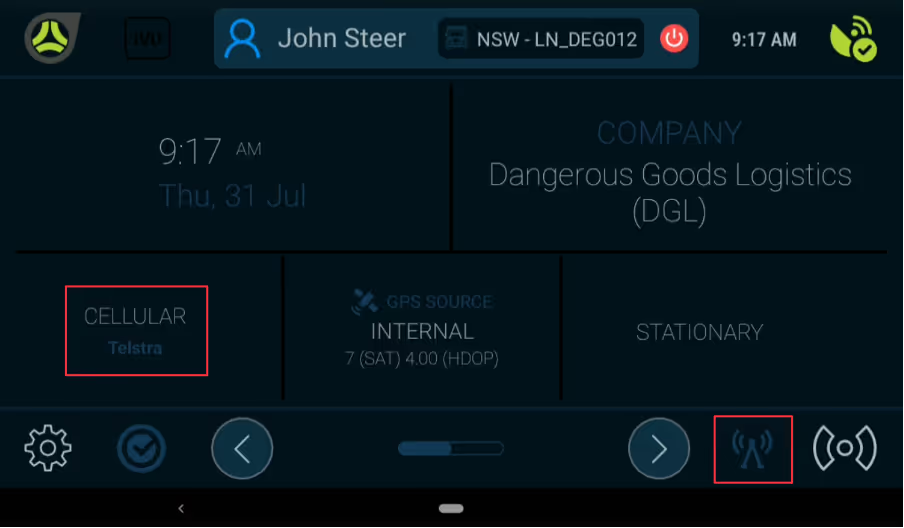
If you are in cellular range however the driver terminal displays No Connection per below, please call 1300 HADDTRACK for assistance
2. Confirm correct truck is listed on Vehicle Confirmation Page.
3. If not, search by entering either the Registration # or Fleet #
4. Select ‘Continue’
5. Select Sync to search for new run sheets
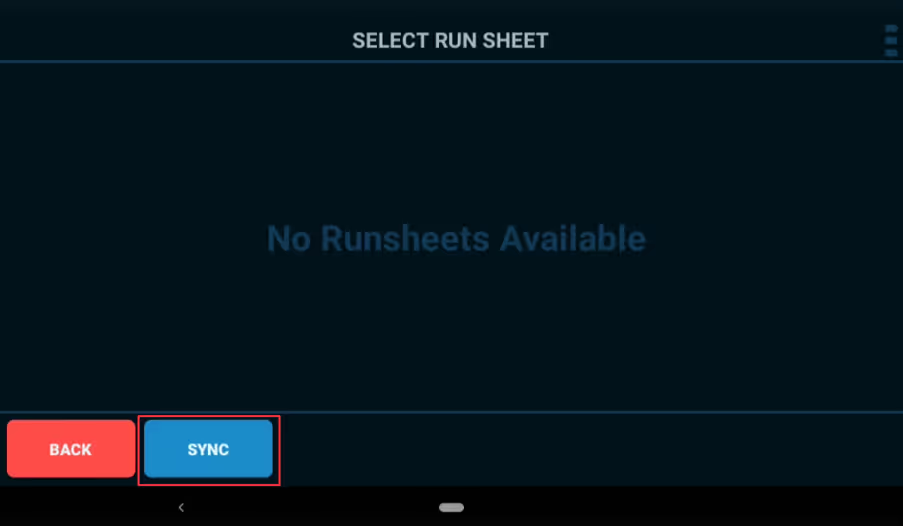
6. If you have performed these steps and still no new Run Sheets are displayed please contact your Transport Manager for instruction
What if the driver terminal doesn’t have the Smart Jobs App?
Applications are arranged in alphabetical order. You may need to swap across on screen to the 2nd page
For any further assistance please complete the below support request and a team member will contact you to assist, or you can call 1300 HADDTRACK.

